Here's a simple guide to help you remove outdated or unnecessary Building Update
Maintaining an up-to-date and relevant database is essential for the smooth operation and user experience within the LIV app.
After logging in to your LIV app account, click on Building Update from the left-side menu. Locate the update you wish to Delete. Beside it, click on the Action Menu, represented by a three-dots icon. This action will display a dropdown menu with options, including "Edit" and "Delete”.
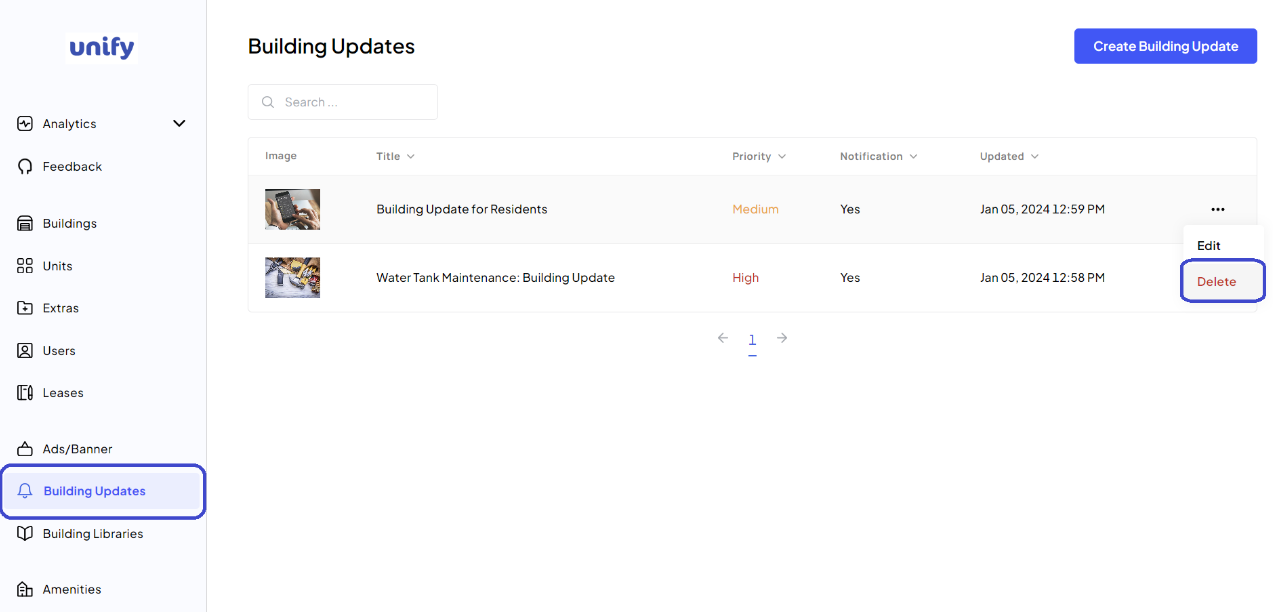
From the dropdown menu, select Delete to start the process of removing the building library. This action will prompt a confirmation popup to ensure that you intend to delete the library.
In the confirmation popup, click on the Delete Notification button to finalize the deletion. This step is crucial as it prevents accidental deletion of important resources.
{delete pop up image}
Once you confirm, the building update you have selected will be permanently deleted from the LIV app.
Was this article helpful?
That’s Great!
Thank you for your feedback
Sorry! We couldn't be helpful
Thank you for your feedback
Feedback sent
We appreciate your effort and will try to fix the article