Here's a simple guide to help you navigate the editing process:
Editing a building allows you to update or correct information regarding your managed properties, ensuring all details are accurate and up-to-date.
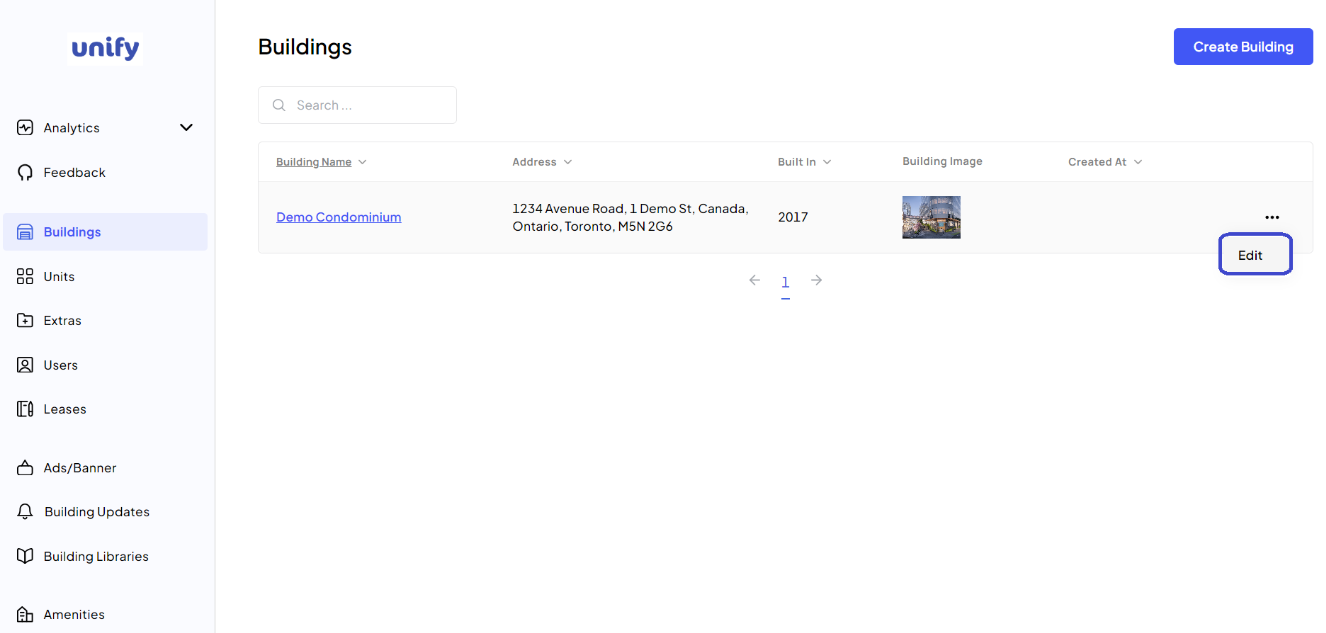
1. Access the Action Menu: After logging into your Unify LIV account, navigate to the Buildings page by clicking on Buildings from the left-side menu. Find the building you wish to edit. Next to the building's entry, click on the Action Menu, represented by a three-dots icon. This will display a dropdown menu with options, including Edit.
2. Begin Editing: Select Edit from the dropdown menu to start modifying the building's information. This action will take you to the editing page, where you can update details such as the building’s name, address, and other pertinent information.
3. Apply Changes: Make the necessary changes to the building's profile. Once all updates are completed, click on the Update button located on the last page to save and apply your changes.
4. Completion: After saving, the building entry will be updated to reflect the new changes, ensuring that all users have access to the most current and relevant building information.
Was this article helpful?
That’s Great!
Thank you for your feedback
Sorry! We couldn't be helpful
Thank you for your feedback
Feedback sent
We appreciate your effort and will try to fix the article