Here’s how to create a new lease in LIV:
Creating a new lease is essential for managing tenant relationships and ensuring accurate rental agreements.
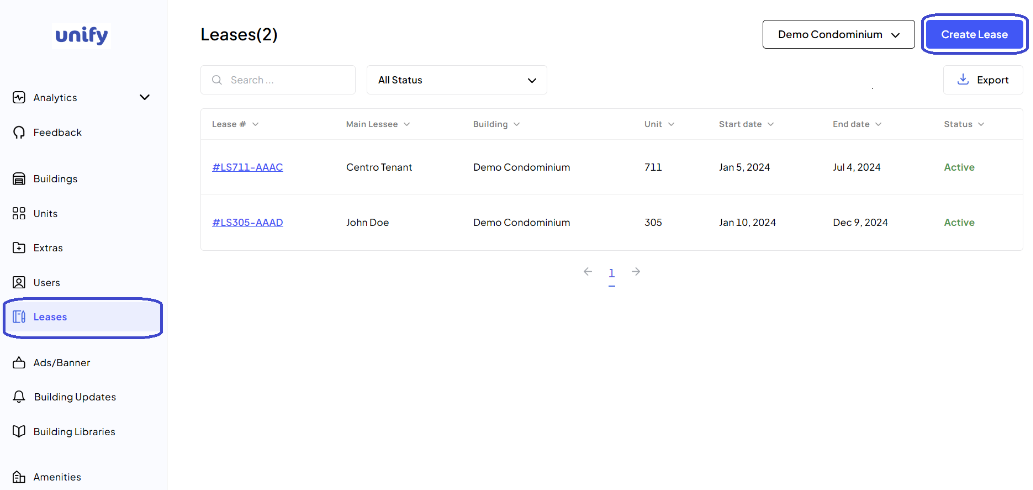
1. Navigate to the Leases Page:
After logging in, click on Leases from the left side menu to access the lease management page.
2. Begin Lease Creation:
Click on the Create Lease button to start the process.
3. Information Page:
a) Select the Building: Choose the required building from the dropdown list.
b) Select a Unit: Pick a vacant unit from the dropdown list.
c) Add Tenant: Click the Add Tenant button and select an unoccupied user from the list to add as the main lessee.
d) Click Add to confirm.
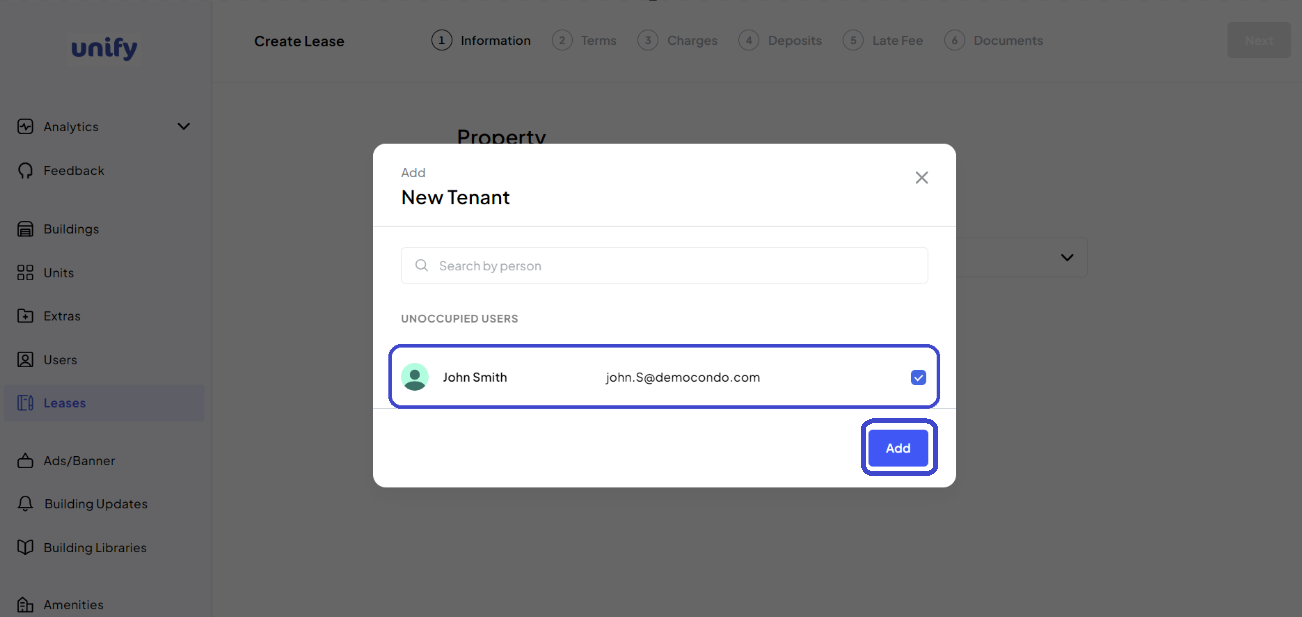
Proceed: Click the Next button once all tenants are added.
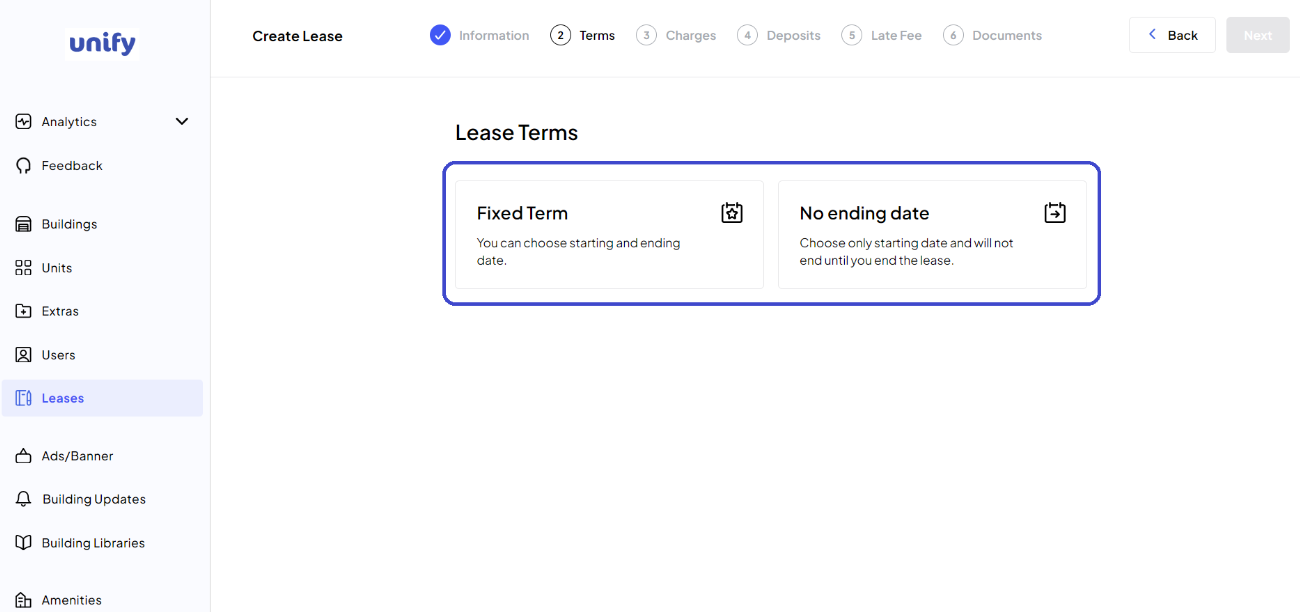
4. Terms Page:
a) Lease Type: Choose between Fixed Term and No Ending Date.
b) Dates: Select the start date and, if applicable, the end date of the lease.
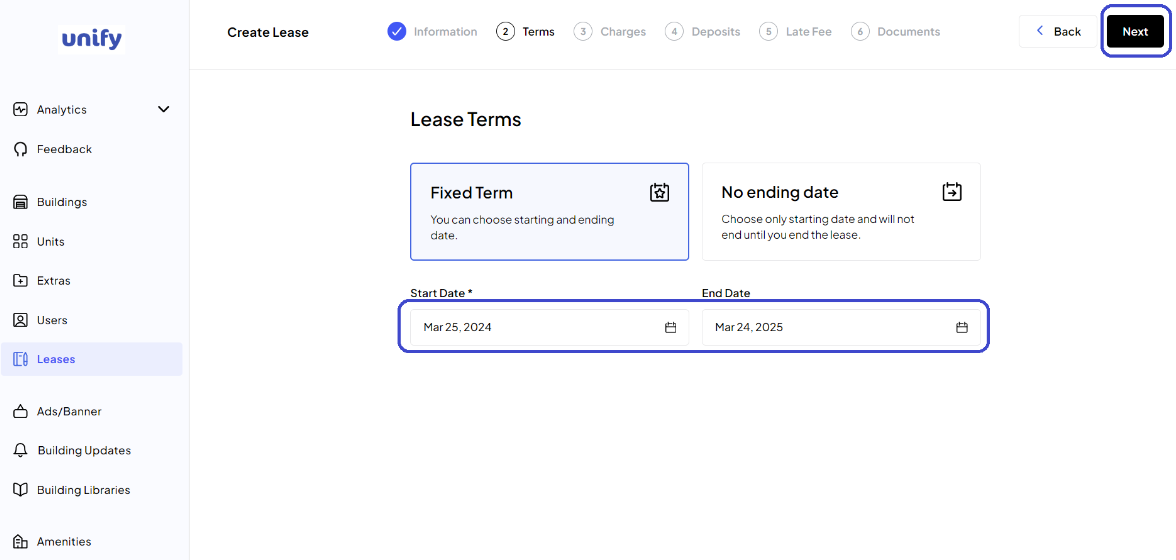
c) Proceed: Click the Next button to continue.
5. Charges Page:
a) Rent Amount: Enter the monthly rent amount.
b) Add Extra Charge: Click to add other monthly charges, select the category, and enter details and amount.
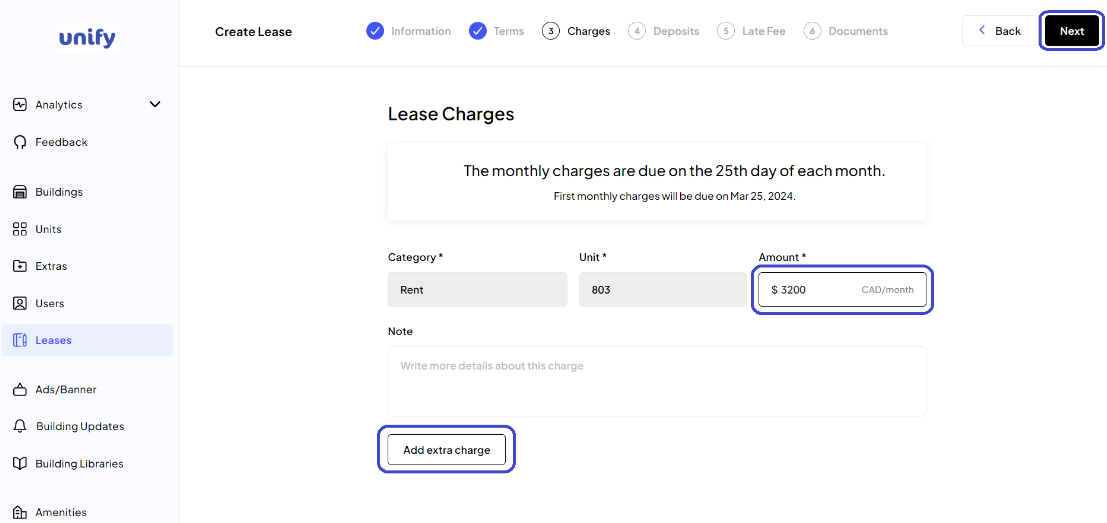
Proceed: Click the Next button once all charges are added.
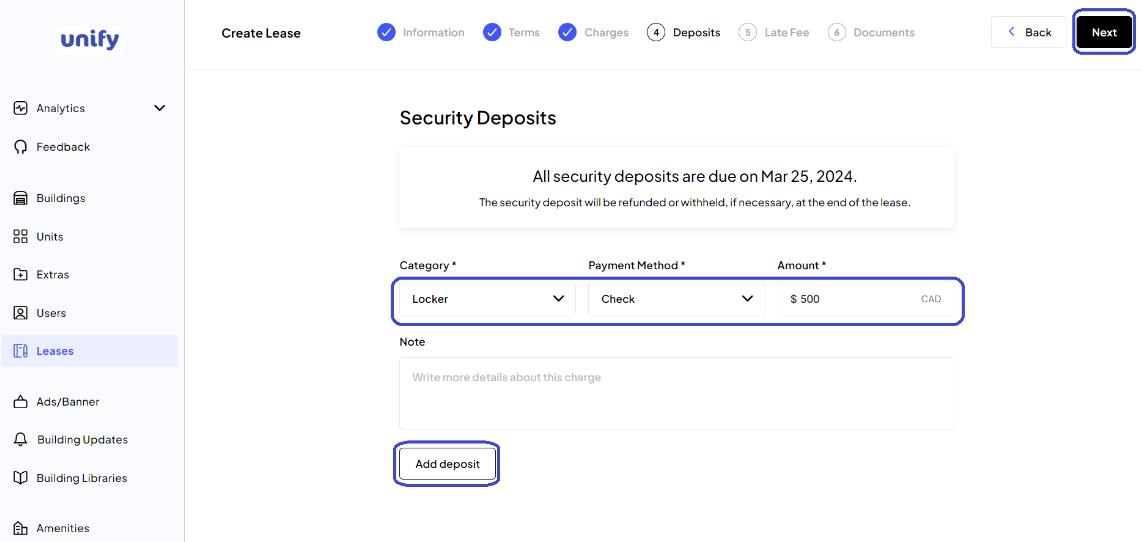
Deposits Page:
Add Deposit: Click the Add Deposit button, select the category, payment method, and enter the amount.
Proceed: Click the Next button once all deposits are added.
6. Late Fee Page:
Fee Type and Amount: Select the fee type from the dropdown and enter the amount or percentage.
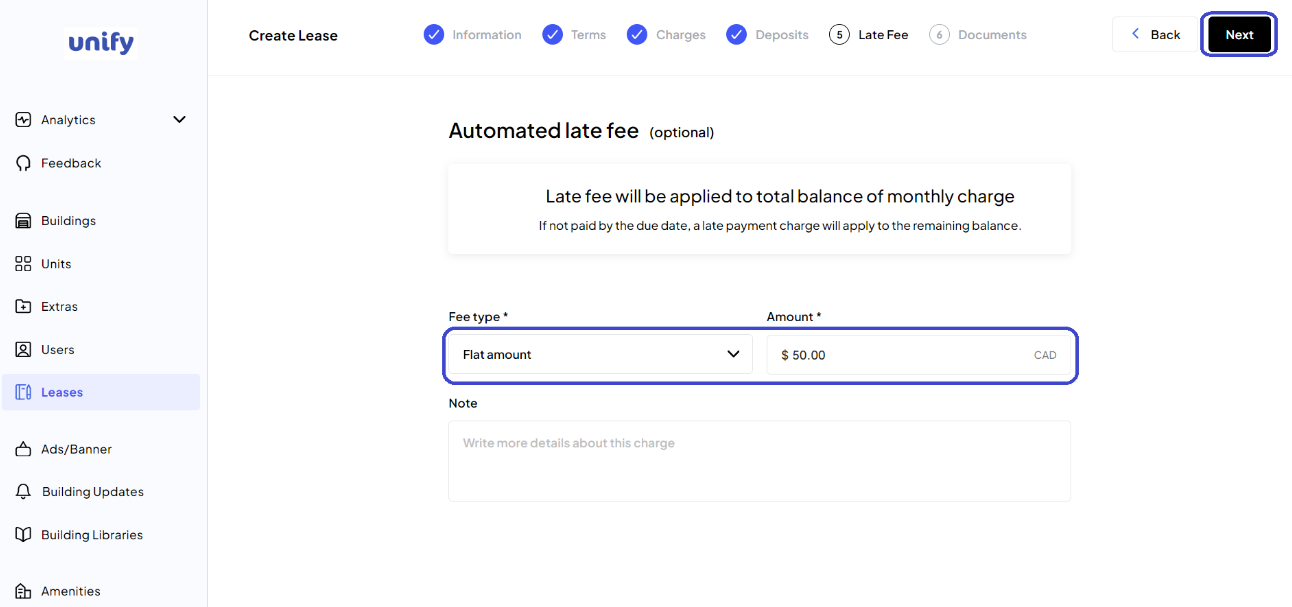
Proceed: Click the Next button to continue.
7. Documents Page:
Upload Documents: Click Add from computer or drag and drop files to upload necessary lease documents.
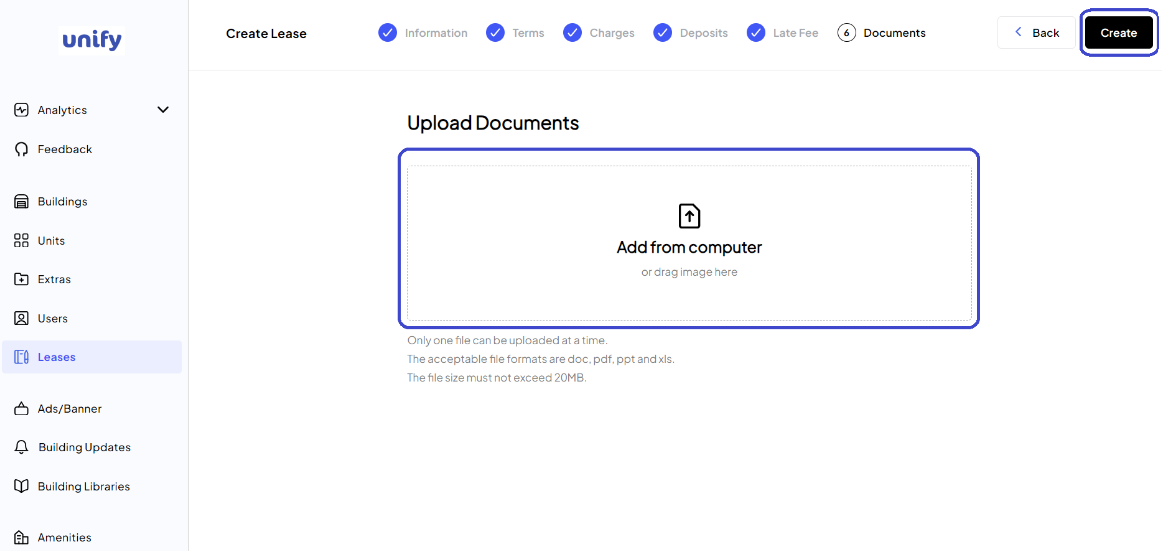
8. Finalize Lease: Once all documents are uploaded, click on the Create button to complete the lease creation.
9. Confirmation:
You have now successfully created a new lease.
Was this article helpful?
That’s Great!
Thank you for your feedback
Sorry! We couldn't be helpful
Thank you for your feedback
Feedback sent
We appreciate your effort and will try to fix the article